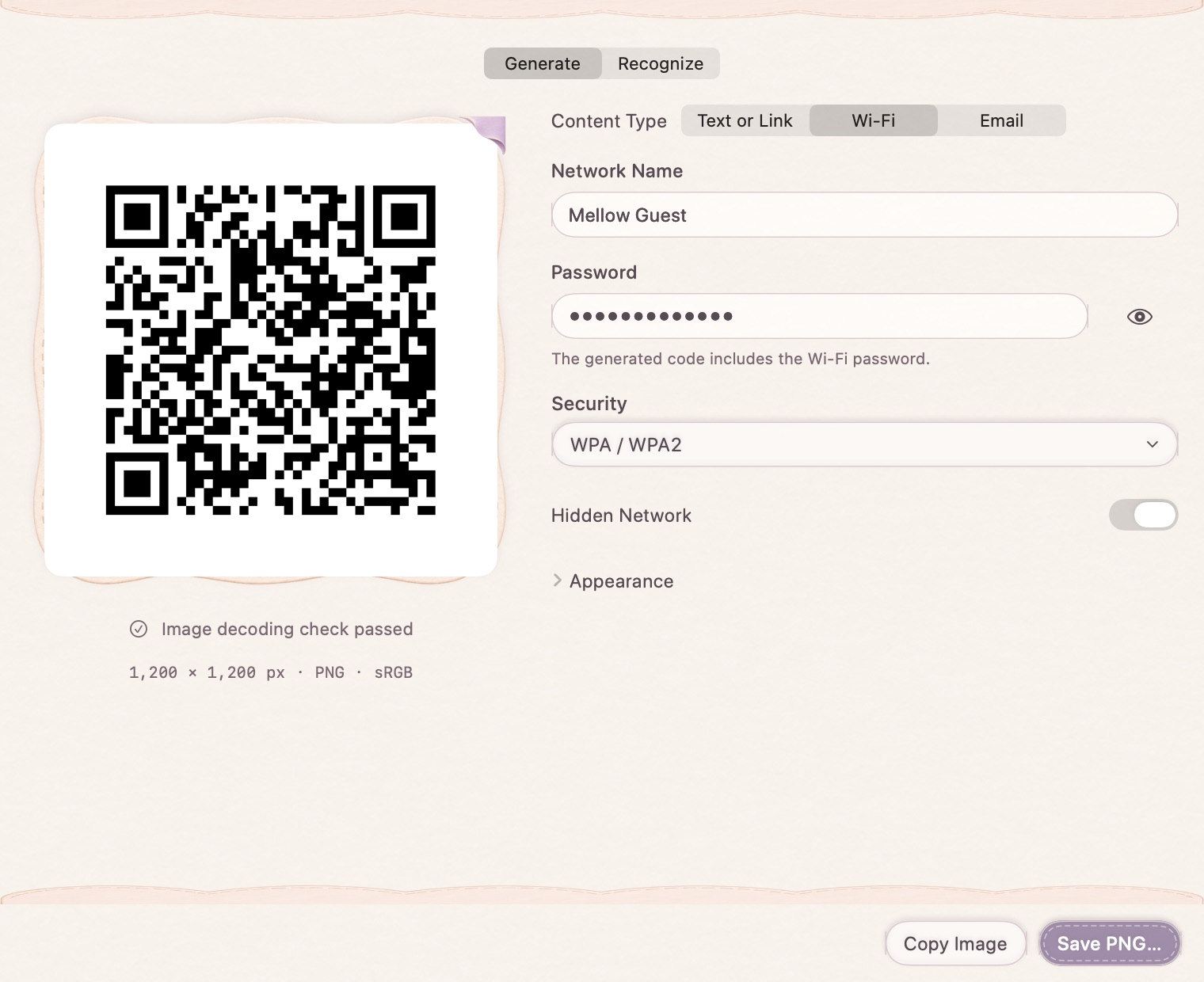
Choose the right kind of content
Use text or a link for a general code. The Wi-Fi form separates the network name, security type, password and hidden-network option. The email form separates recipient, subject and body, so reserved characters and line breaks are encoded as their own fields.
Style it, and keep it readable
Adjust supported shapes, colors, gradients and output size. The app reads the generated image back before reporting a checked preview. A clean border and good contrast still matter when the code is placed into a document or printed.
Export and check the final placement
Copy the image or save a PNG. Check the code after resizing or printing, on the devices that will use it. A Wi-Fi code contains its configured password; share the image only with the intended audience. Generating an email QR code creates encoded content—it does not send a message.
How to use it
- Choose text/link, Wi-Fi or email.
- Fill in the content and review the checked preview.
- Copy or save PNG, then try the finished placement on a reader.
Can I make a Wi-Fi QR code?
Yes, with security, password and hidden-network fields. Scanner and device connection behavior can vary.
Can MellowKit read QR codes too?
The tool also provides image-based recognition. Review the decoded content before opening an unfamiliar link.