Build the batch you actually need
Add images to the working list, append more without replacing the batch, and remove an accidental choice from the list. Repeated selections are deduplicated. The batch limit is 200 images; keeping the selection deliberate makes it easier to review each result.
Choose dimensions and encoding together
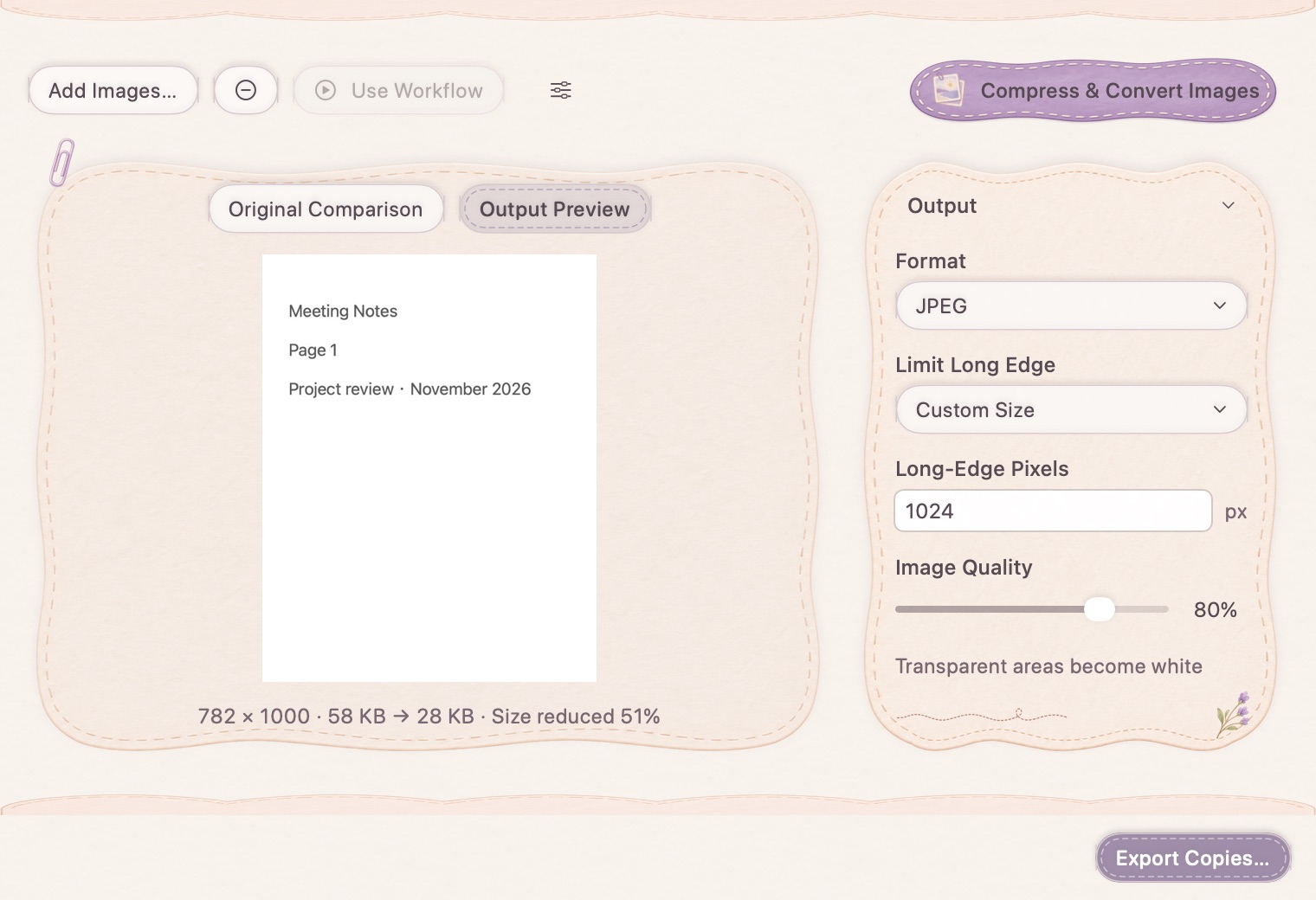
Keep the source dimensions or set a long-edge limit, including a custom value from 16 to 8000 pixels. A long-edge limit reduces oversized images rather than enlarging smaller ones. Choose JPEG, PNG, HEIC or TIFF according to where the images will go, and adjust quality where that format supports it.
Compare, then export separate copies
The preview shows output dimensions and the size change. Compare with the source at the same display size when judging quality. JPEG does not preserve transparency, so transparent areas are flattened to white. Export the result as a separate copy and review any per-file failures rather than assuming the entire batch succeeded.
How to use it
- Choose images and adjust the working batch.
- Select format, quality and a long-edge limit.
- Compare the preview and file-size change.
- Export copies and check the per-file result.
Will a larger size setting upscale a small image?
No. The long-edge limit is a cap. An image already below the limit keeps its smaller dimensions.
Which format should I use for transparency?
Choose a format that supports alpha, such as PNG. JPEG flattens transparent regions to white; inspect the preview before export.