
Annotate and redact screenshots before sharing
Add arrows, text, highlights, mosaic redactions, backgrounds and watermarks to Mac screenshots in MellowKit. Review the final export and keep an editable project.
1. Make your point with annotations
Capture a region, window or screen, then use arrows, text, shapes or highlights to explain the important details. Keep annotations focused and avoid covering the content you are explaining. Crop or rotate first if necessary.
2. Cover private details before sharing
Look for names, account details, email addresses, keys and private conversation content. Use an actual redaction or covering tool, then inspect the exported image. A thin outline, translucent highlight or watermark does not reliably hide text. Sensitive-content suggestions do not replace your own review.
3. Style the image for its destination
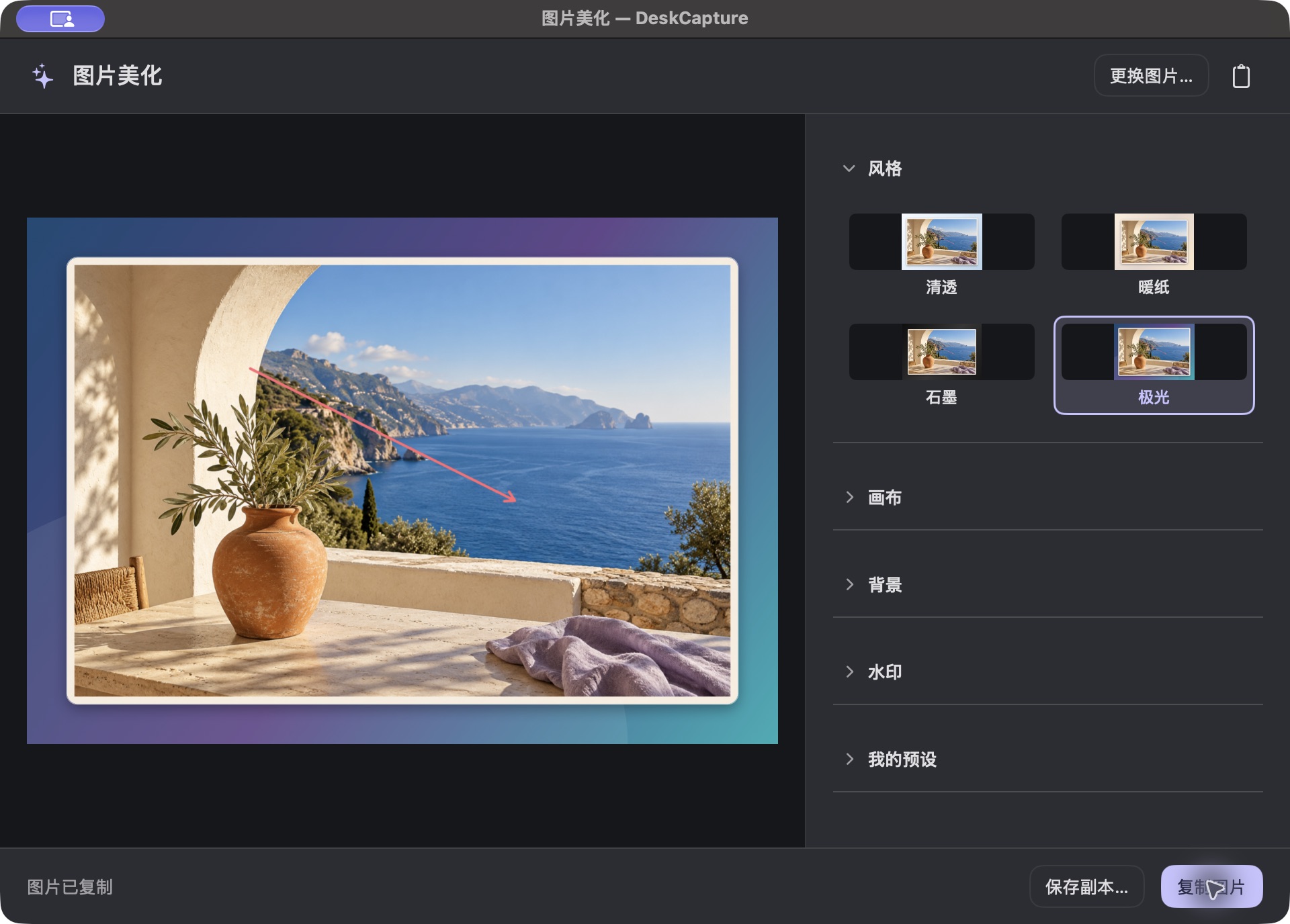
Choose a background, padding, rounded corners and watermark that fit your document or sharing context. Keep the content readable. Save your preferred styling settings to reuse them on future images.
4. Keep an editable version
Copy the image into a message or document, or save it as a file. Keep an editable project if you need to revise it later, and reopen it from history. Review the exported file to confirm that cropping, redactions and annotations are all present.
Keep exploring
How to take a scrolling screenshot on Mac
The first Mac App Store release is being prepared. An official download link will be added after launch.